
May 2026
How to Stream to Instagram Live
A step-by-step guide using HostVortex and the OBS Vertical Streaming Plugin.
📖 Official Instagram Live Producer GuideGetting Started
- 1
On Instagram via desktop, click + Create, then select Live video.
- 2
Set your video title and pick who can see your stream.
- 3
Copy your stream key.
- 4
Don't close the Instagram tab — open a new tab and head to your Hostvortex Dashboard.
- 5
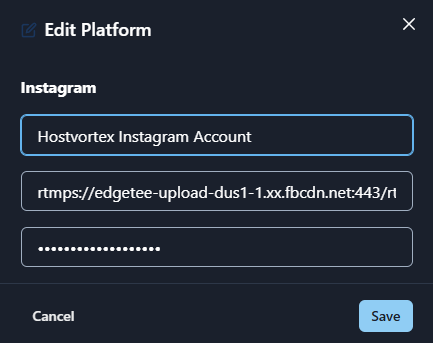
Add a new Instagram platform or update your existing one.
- 6
Paste the Stream URL and stream key from your Instagram tab into Hostvortex.
- 7
Launch your stream from OBS using the Hostvortex Vertical Streaming Plugin — a preview will appear on Instagram.
- 8
When you're ready, hit Go Live in the top right corner.
Things to Know
Tips
💡 Keep your Instagram Live tab open the entire time. Closing it will end the broadcast immediately. See Instagram's Live Producer guide
💡 Instagram starts recording the moment your streaming software connects — even before you press Go Live. If you care about a clean archive, be mindful of what happens in that pre-live window.
💡 New to vertical streaming? Learn how to set up the OBS Vertical Streaming Plugin for 9:16 output. Vertical Streaming setup guide →
← Back to Blog
©Hostvortex All Rights Reserved